All posts / Guide / 6 min read
Encrypt notes: vault, a password of its own, or a sealed notebook
Three ways to protect pages – and how to find the right one. With steps for each.
The three kinds of protection
Mumbin protects notes on disk. You choose per page or per notebook:
- A password of its own for a page: the page (and its attachments) opens only with its password. Every page can have a different one.
- The notebook's vault: one passphrase protects all the pages you hand to the vault.
- A sealed notebook: everything is encrypted, including the names of pages and attachments on disk.
The tip: if the names of your pages should stay hidden too, seal the notebook – then the names of pages and attachments are encrypted too.
Protect a single page with its own password
- Open the page in the page tree.
- In the sidebar click the arrow next to the
+and choose “Protect page with its own password …”. - Enter the password twice. The strength meter helps; the password must be at least ten characters long.
- Confirm with “Protect”.
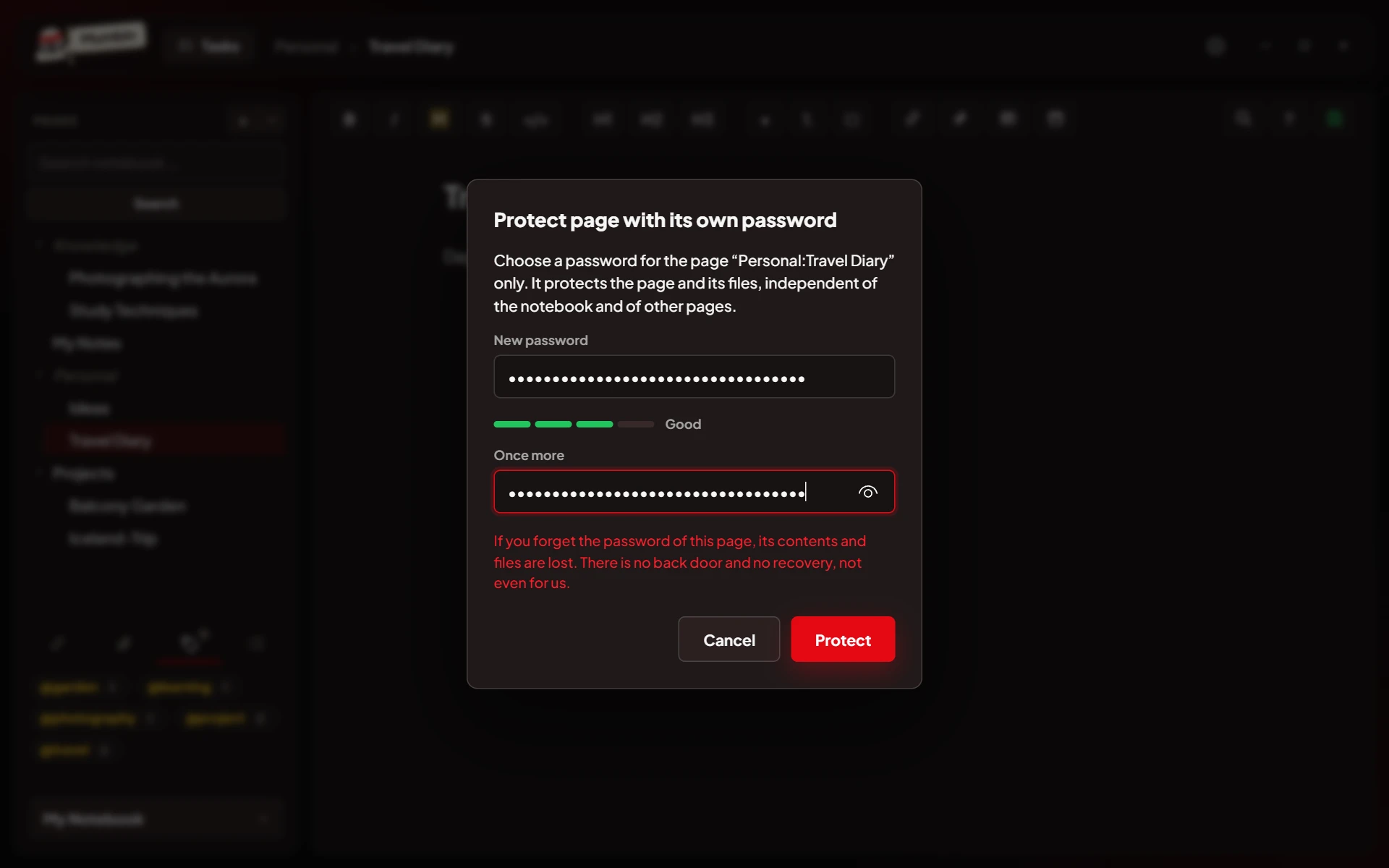
The page stays open until you close it with “Lock page” in the page menu, the automatic lock kicks in, or you switch notebooks. A padlock in the page tree shows the state. A locked page shows an “Unlock …” button instead of its text and asks for the password of exactly this page.
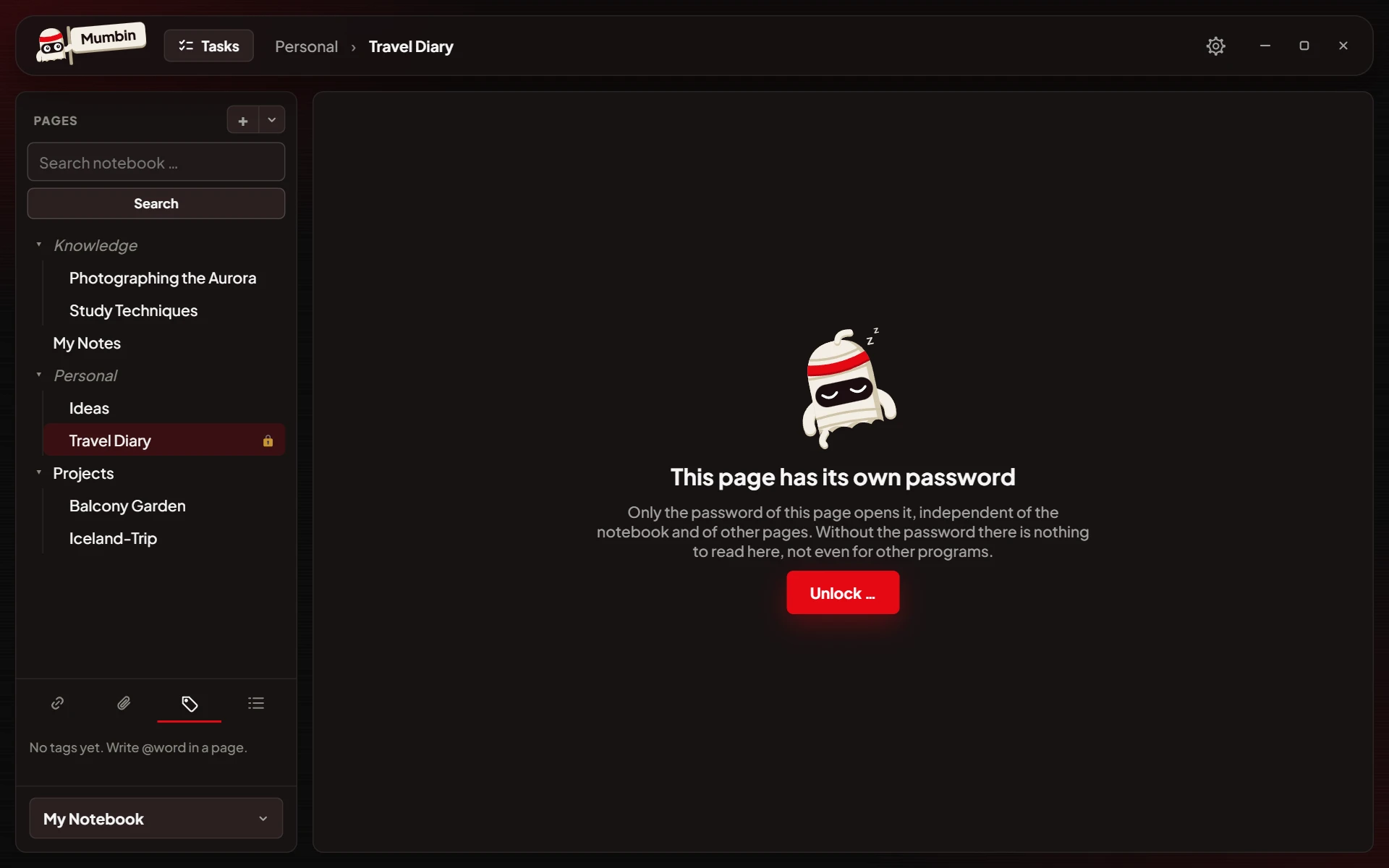
The same menu offers “Change password …” and “Remove protection …”. The password of a page belongs to you alone: there is no back door, so keep it safe.
Protect several pages with a vault
- Open the gear menu and choose “Manage encryption …”.
- Click “Set up …” and choose a passphrase.
- Encrypt pages one by one with “Encrypt page” in the page menu, or all at once with “Encrypt all pages”.
In the settings under “This notebook” you can have new pages encrypted automatically. In the “Manage encryption” dialog you set the automatic lock after a period of inactivity.
Seal a whole notebook
When you create a new notebook, Mumbin asks: “Protect the new notebook with a passphrase?”. If you choose “Protect with passphrase”, everything is encrypted – every page, every attachment and even their names on disk. Mumbin asks for the passphrase when you open it. You choose a sealed notebook right when you create it.