All posts / Guide / 4 min read
Back up your notebook, take it along and open it without Mumbin
Your notebook is a folder. Here is how to back it up, take it with you and still reach protected content without Mumbin.
A notebook is a folder
Every notebook lives in a folder of your choice. Unprotected pages are plain text files; attachments sit in folders next to them:
To back up, copy the folder. Wait until Mumbin shows “saved”, or close the program first. For another PC copy the folder and mumbin.exe; your personal settings are in the mumbin_data folder next to the EXE.
Pass on as HTML or print
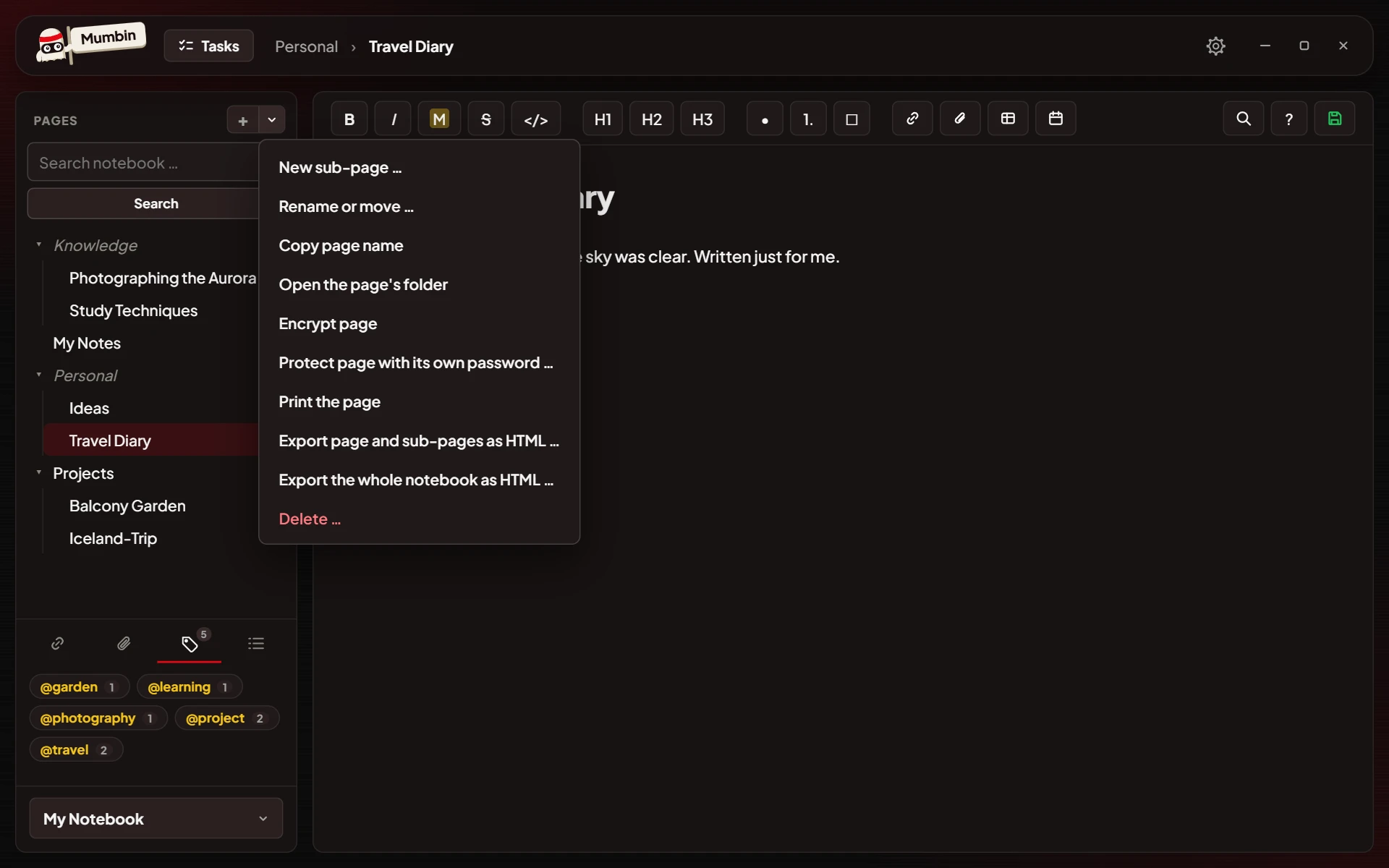
In the page menu (the arrow next to the +) you find “Export page and sub-pages as HTML …” and “Export the whole notebook as HTML …”. The export writes files into a new folder and overwrites nothing. “Print the page” prints a page. Locked pages are missing from an export. Unlocked protected pages are exported in plain text – keep that in mind before you pass an export on.
Open protected content without Mumbin
If Mumbin is ever no longer available, the independent Python tool and your password get you to all protected pages and attachments. It reads the notebook folder and writes a decrypted copy into a new folder.
- Install Python 3 and the package
pynacl:pip install pynacl - Download mumbin_decrypt.py.
- Run:
python mumbin_decrypt.py "C:\Notes\MyBook" --out "C:\Notes\MyBook-open"
For pages with a password of their own set the environment variable MUMBIN_PAGE_PASSWORD or type the password when the tool asks for it. The result is an ordinary notebook of text files. Nothing works without the right password – not even for us.