All posts / Article / 5 min read
A free note-taking app for Windows: encrypted, offline and no account needed
A note-taking app should be fast, keep things tidy and protect your thoughts. Mumbin does all that in one portable file – free, with no sign-up.
What a good note-taking app offers
When you keep notes digitally you want three things above all: to capture them quickly, to find them again later and to be sure they stay private. Mumbin is built for exactly that. It is a note-taking app for Windows 10 and 11 that runs on your computer and stores your texts as files in a folder you choose yourself.
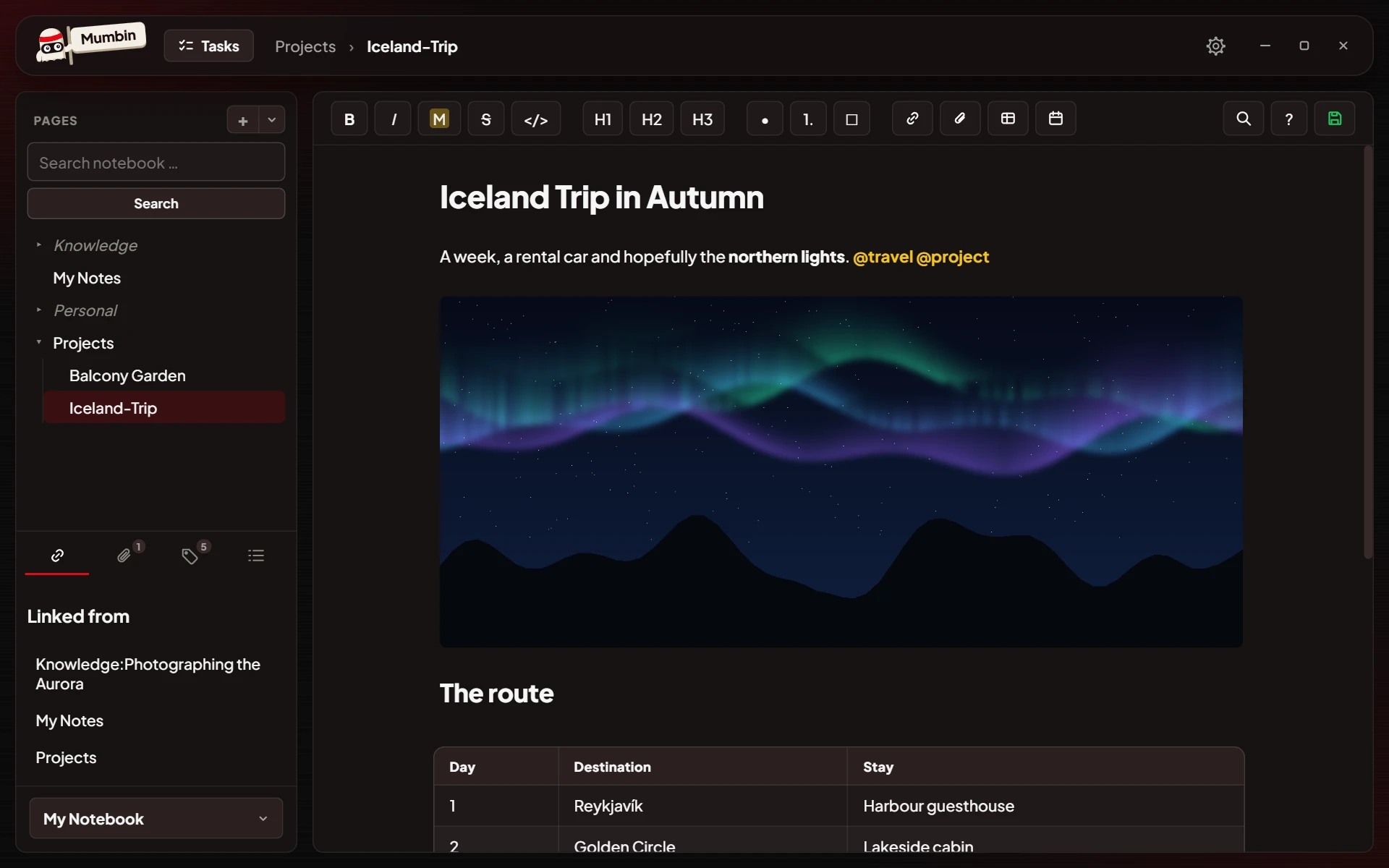
The main features at a glance
- Writing with formatting: headings, lists, tables, pictures and code look the way they are meant to, right away.
- Linking: pages sit in a tree and refer to each other; backlinks show where a page is mentioned.
- Finding: search covers titles and text and shows a preview for every hit.
- Tasks: a checkbox in the note is enough, the task overview collects them all – with a start and a deadline if you like.
- Encrypting: per page, with a shared vault or as a sealed notebook. More in the guide “Encrypt notes”.
- Attachments: PDFs, scans, spreadsheets and any other files go right beside the page.
No account, no installation
Mumbin is a single EXE file of about 4.3 megabytes. There is no installer and no user account. The program keeps your settings in the mumbin_data folder next to the EXE, not in the Windows registry. That means you can take everything along on a USB stick. More about this benefit in the article A portable notes app.
Start in three steps
- Download: get mumbin.exe and put it in a folder you can write to.
- Run: the first time, you choose the folder for your notebook. If the Microsoft Edge WebView2 runtime is missing (many Windows PCs already have it), you install it once.
- Get going: write your first page, link it to a second one and protect what should stay private.
Who is Mumbin for?
Mumbin suits anyone who works on their own under Windows and wants to keep notes locally and protected: for studying and research, projects, travel, a journal and collections of knowledge. You will find concrete ideas in the article Everyday use cases.
Frequently asked questions
Is Mumbin really free?
Yes. You can download and use Mumbin for free, for personal use and internally in a business. The source code is publicly viewable; the exact terms are in the licence file on GitHub.
Do I need an account or a sign-up?
No. There is no account and no sign-in. You start the EXE, choose a folder for your notebook and start writing.
Why does Windows show a warning the first time I start it?
The preview version is not digitally signed yet, so Windows may show a notice. You can compare the SHA-256 checksum of the downloaded file with the value on the release page to make sure it is unchanged.